

Efata

Make a presentation from an idea.

Start with an idea or document. Edit the slides before export.

A real presentation, slide by slide

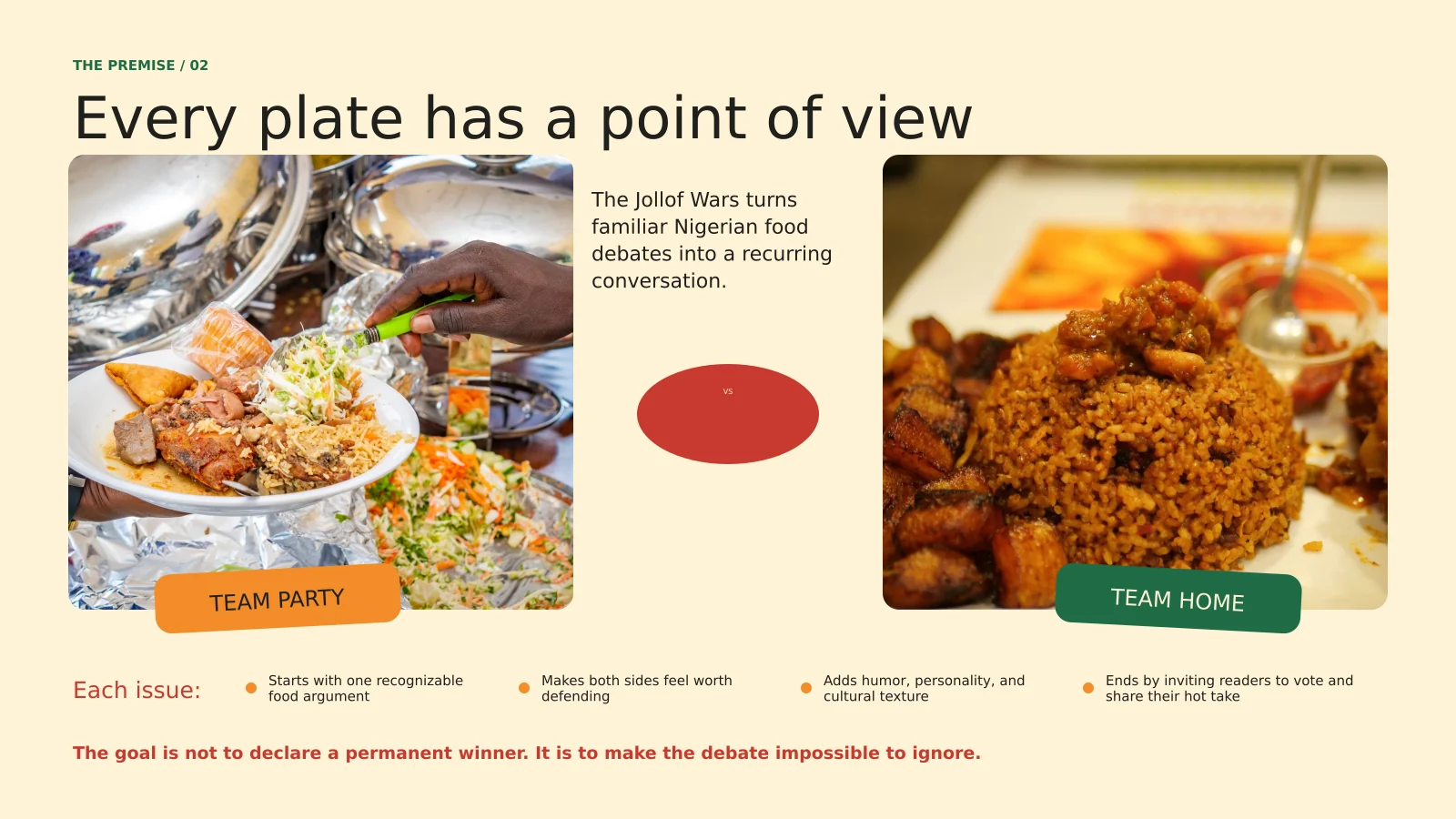
  • Slide 01 from The Jollof Wars: What Your Rice Says About You presentation.
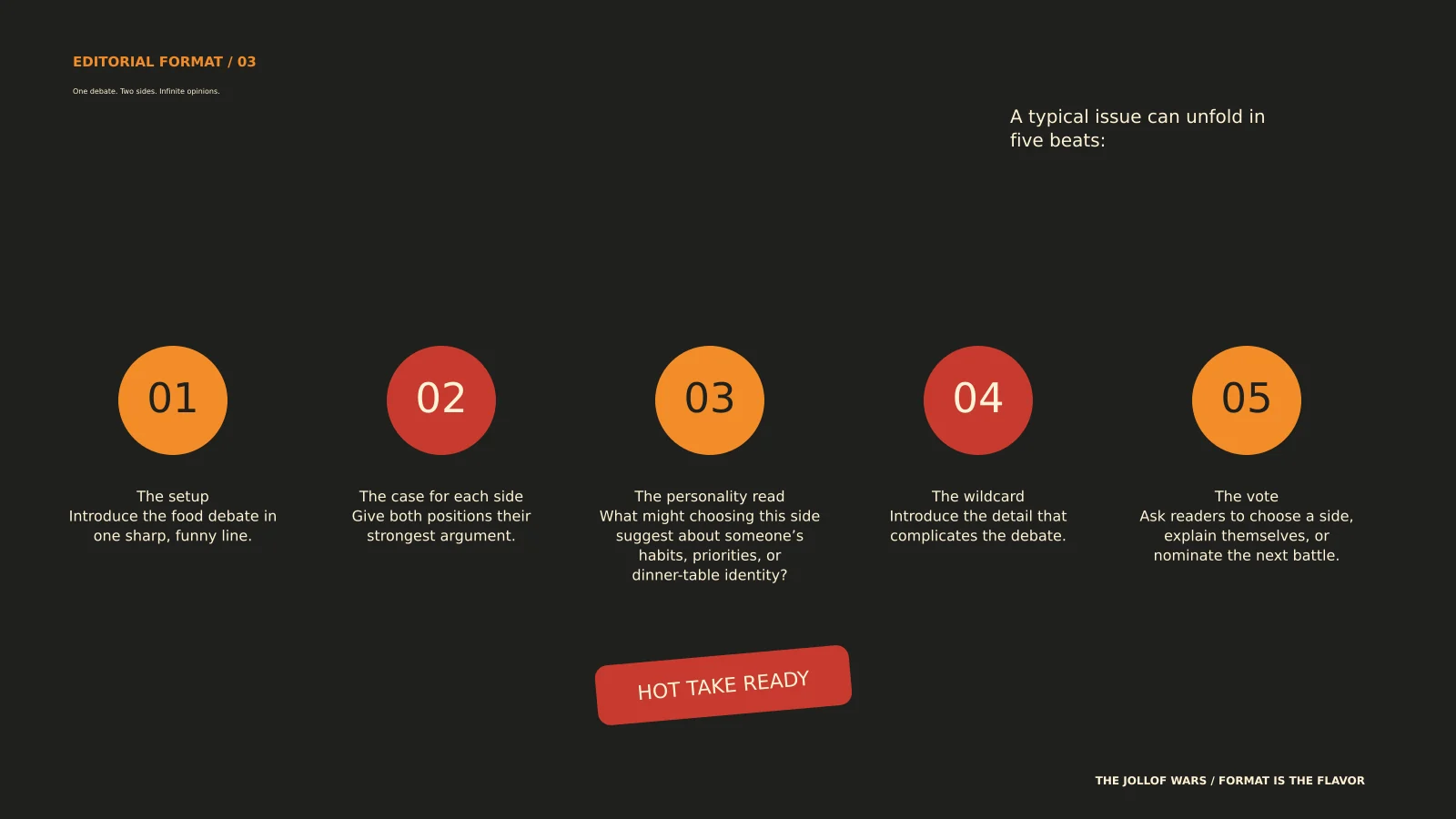
  • Slide 02 from The Jollof Wars: What Your Rice Says About You presentation.
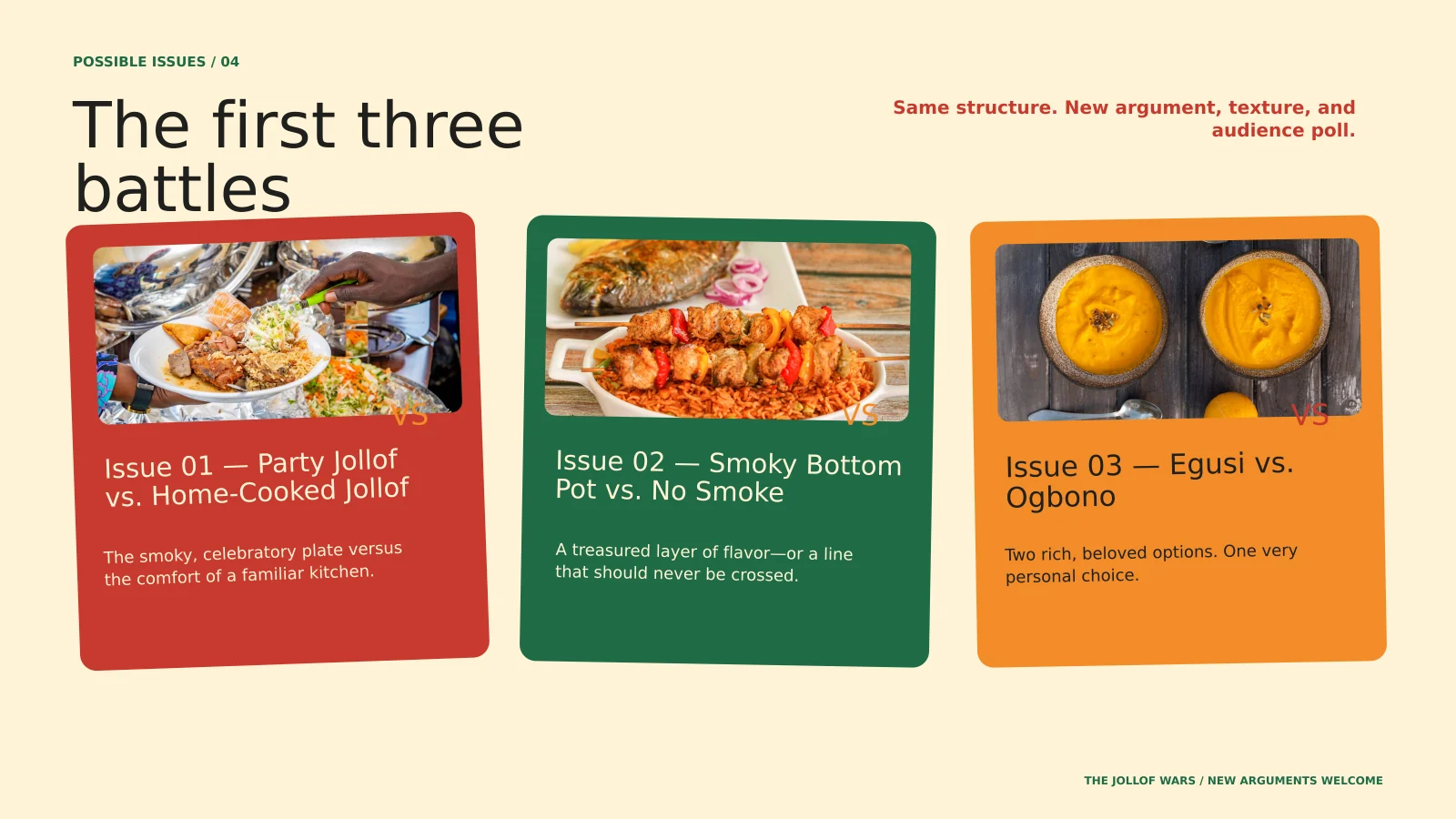
  • Slide 03 from The Jollof Wars: What Your Rice Says About You presentation.
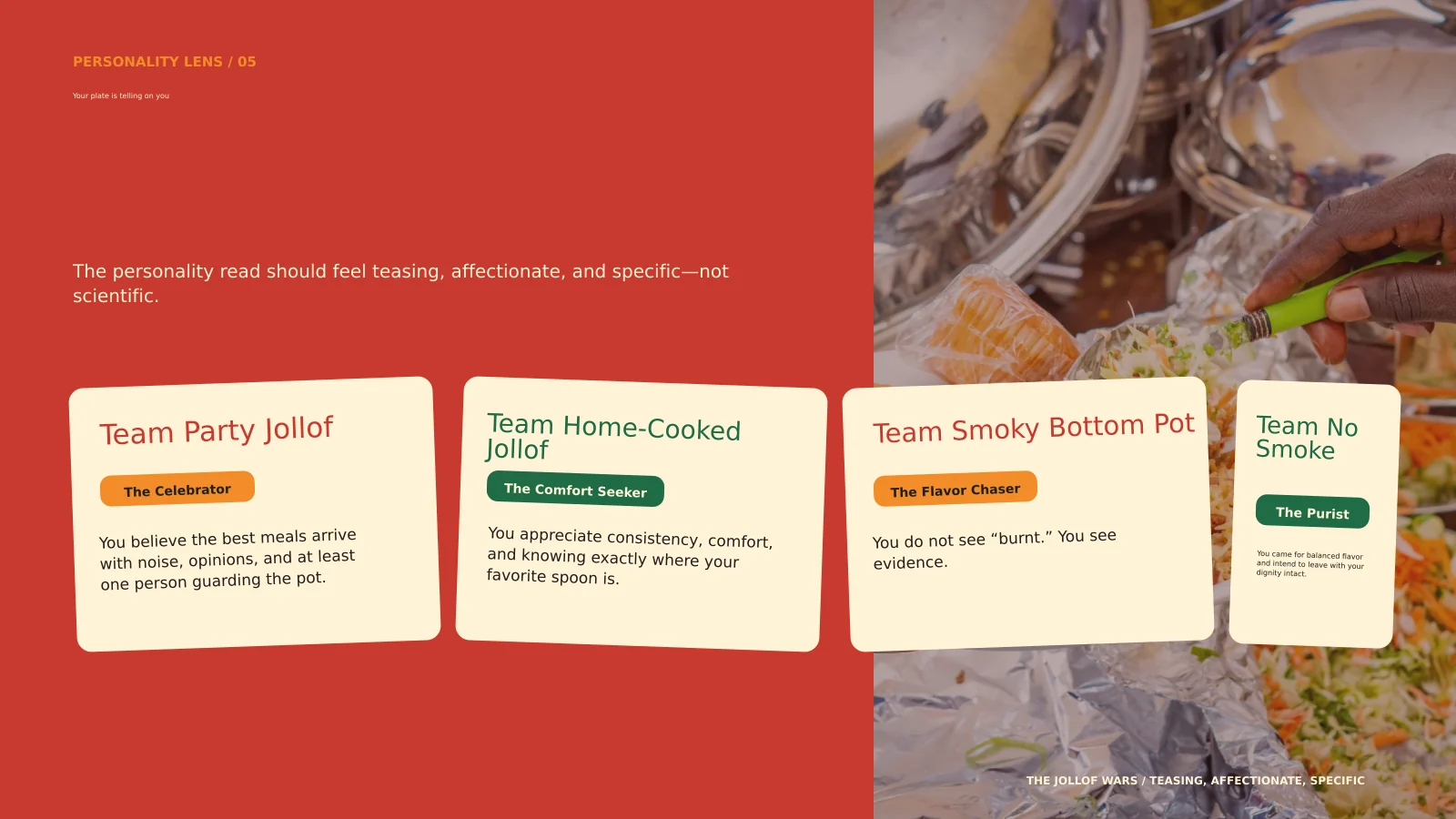
  • Slide 04 from The Jollof Wars: What Your Rice Says About You presentation.
  • Slide 05 from The Jollof Wars: What Your Rice Says About You presentation.
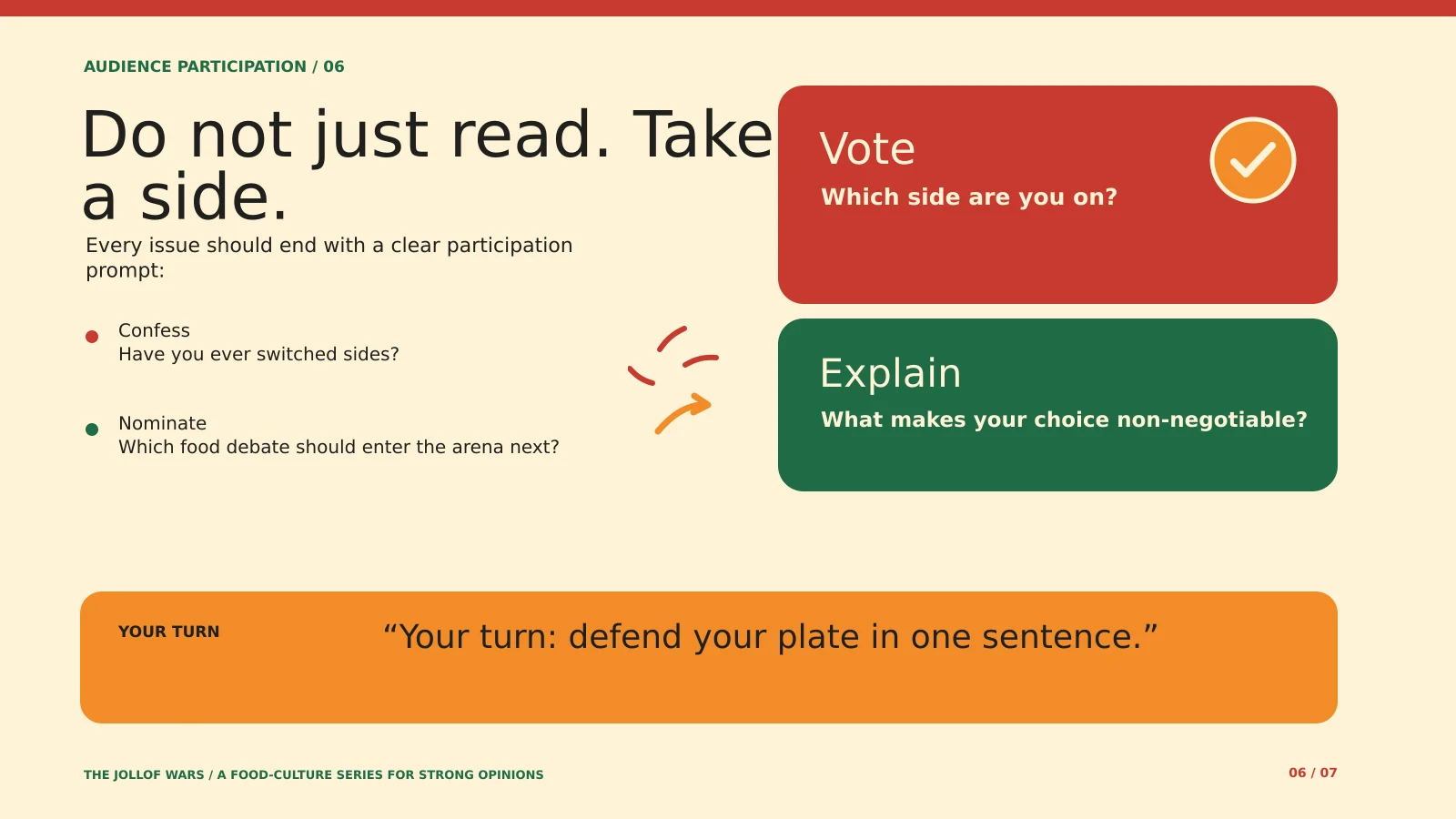
  • Slide 06 from The Jollof Wars: What Your Rice Says About You presentation.
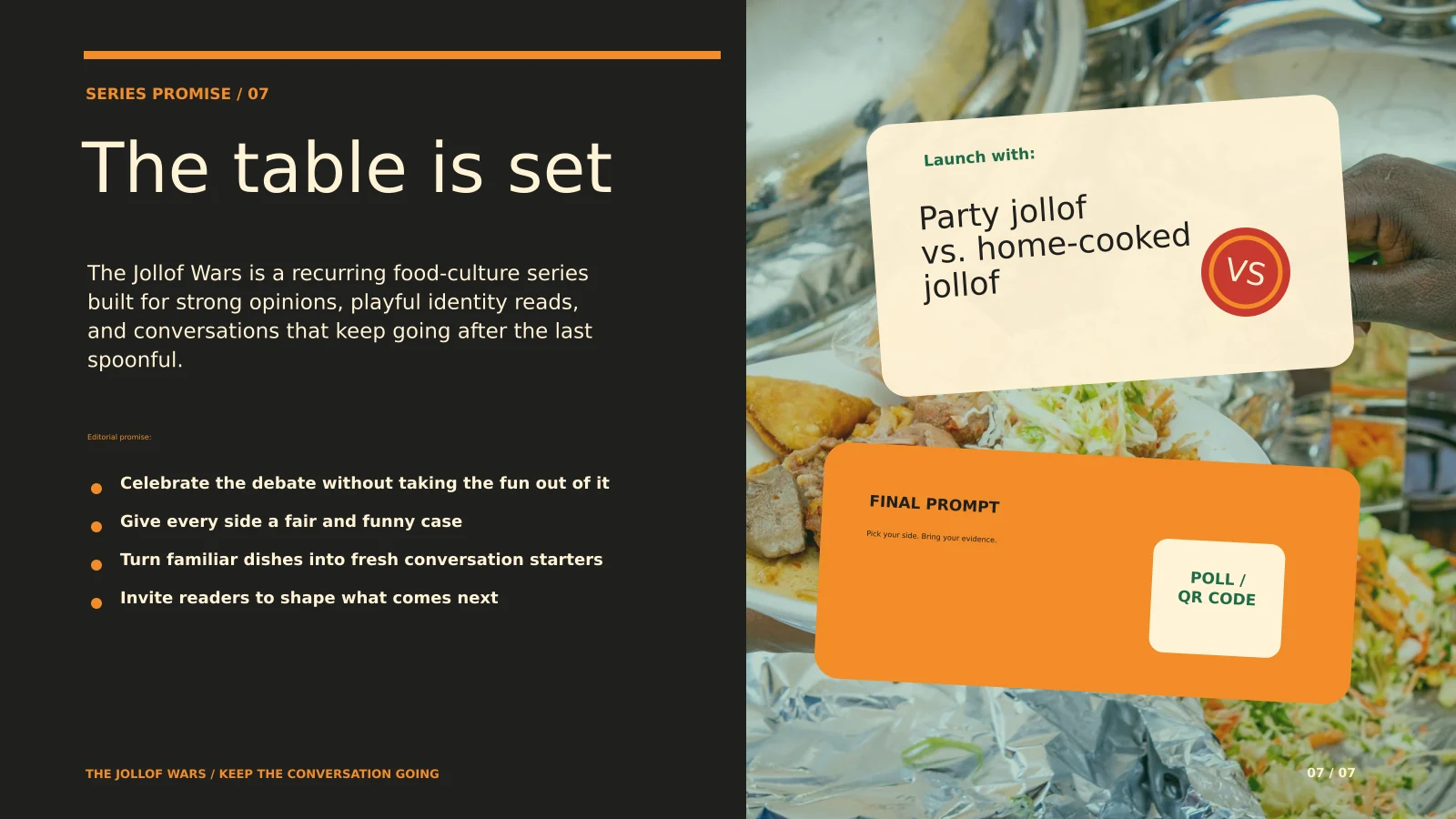
  • Slide 07 from The Jollof Wars: What Your Rice Says About You presentation.
01

Give Efata the idea or document behind the deck.

Start with a subject you want to explain, or upload a document that contains the information. Efata uses that starting point to plan and design a presentation.

You can review the plan before generating the slides, so you can shape the story before the deck is complete.

02

A finished first pass is still yours to edit.

Open the generated deck in the presentation editor to adjust slide content and visuals. The work stays in an editable presentation instead of becoming a flat image.

When the deck is ready, export it or share a read-only link with someone else.

More room for
the good idea.

01

Start without a blank deck

Use a plain-language idea or an existing document as the starting point for your presentation.

02

Review before the slides are made

Check the planned content and direction, and make changes before you generate the slide designs.

03

Edit and share the finished deck

Continue refining slides in the editor, then export the presentation or share it for read-only viewing.

From first thought
to ready to share.

01

Share your starting point

Describe the presentation you need or upload a document with the source material.

02

Review the plan

Look through the proposed slide content and make sure the story is headed in the right direction.

03

Generate and refine

Create the slides, edit the deck, then export or share the presentation.

Before you
get started.

What does Efata’s AI presentation maker do?

It turns an idea or uploaded document into a presentation plan and designed slides. You can review the plan, then edit the generated deck.

Can I upload a document to make a presentation?

Yes. You can start with an idea or upload a document containing the information you want to present.

Can I edit my presentation after it is generated?

Yes. The presentation opens in Efata’s editor, where you can continue editing the deck before exporting or sharing it.

Can I share a presentation without giving edit access?

Yes. Efata can create a read-only share link so someone can view the presentation without editing it.

Make the next presentation easier to start.

Bring a topic or document and shape the slides from there.